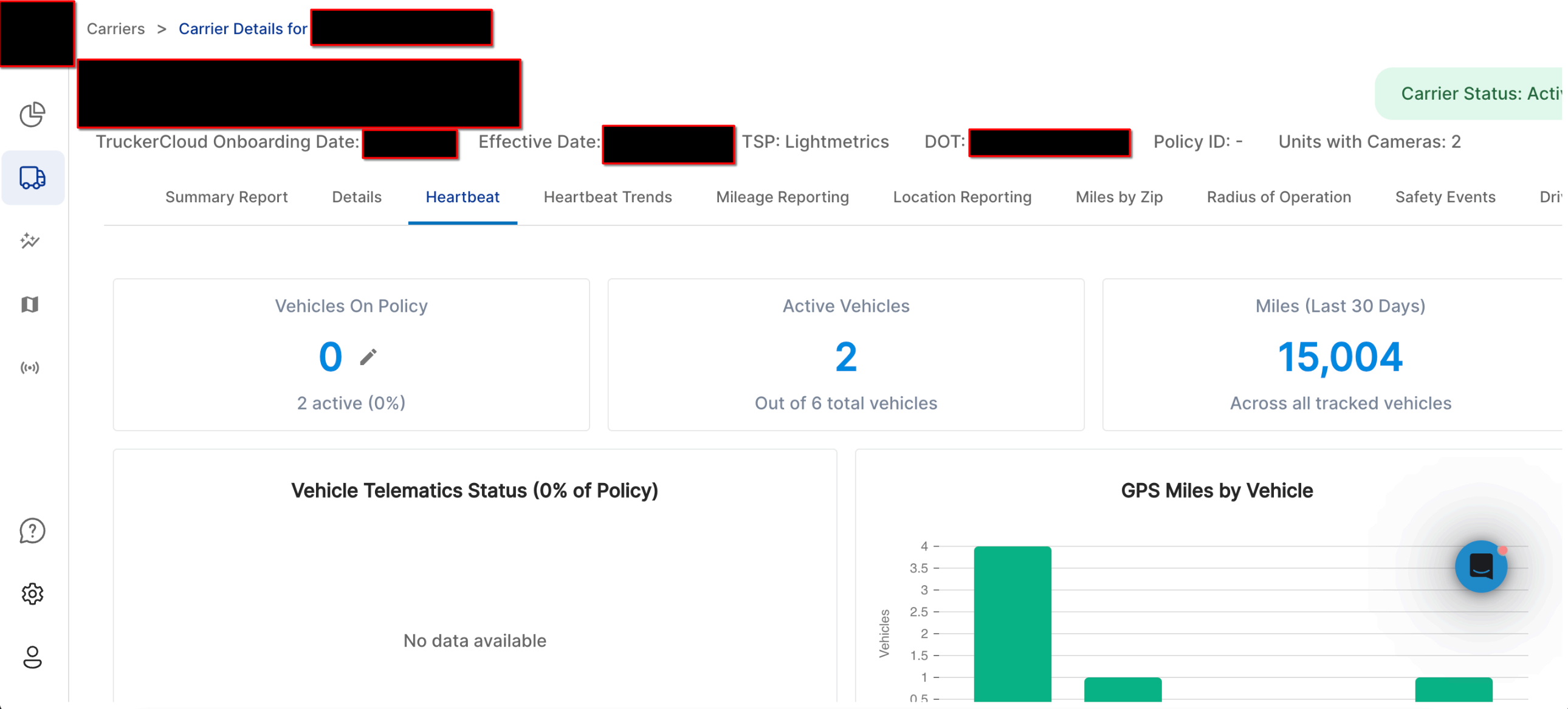
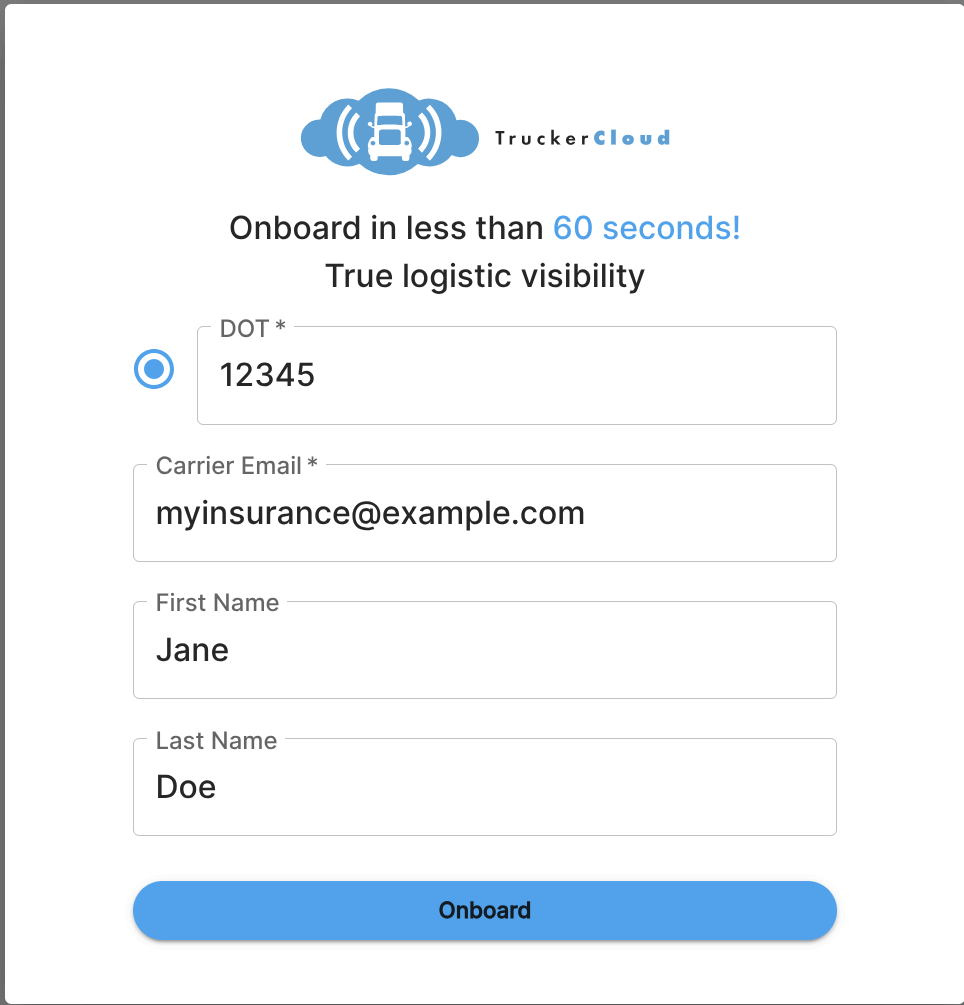
Typically, integration begins with an onboarding link that is specific to the insurance carrier issuing the policy. The link leads to a landing page where basic details are to be entered.
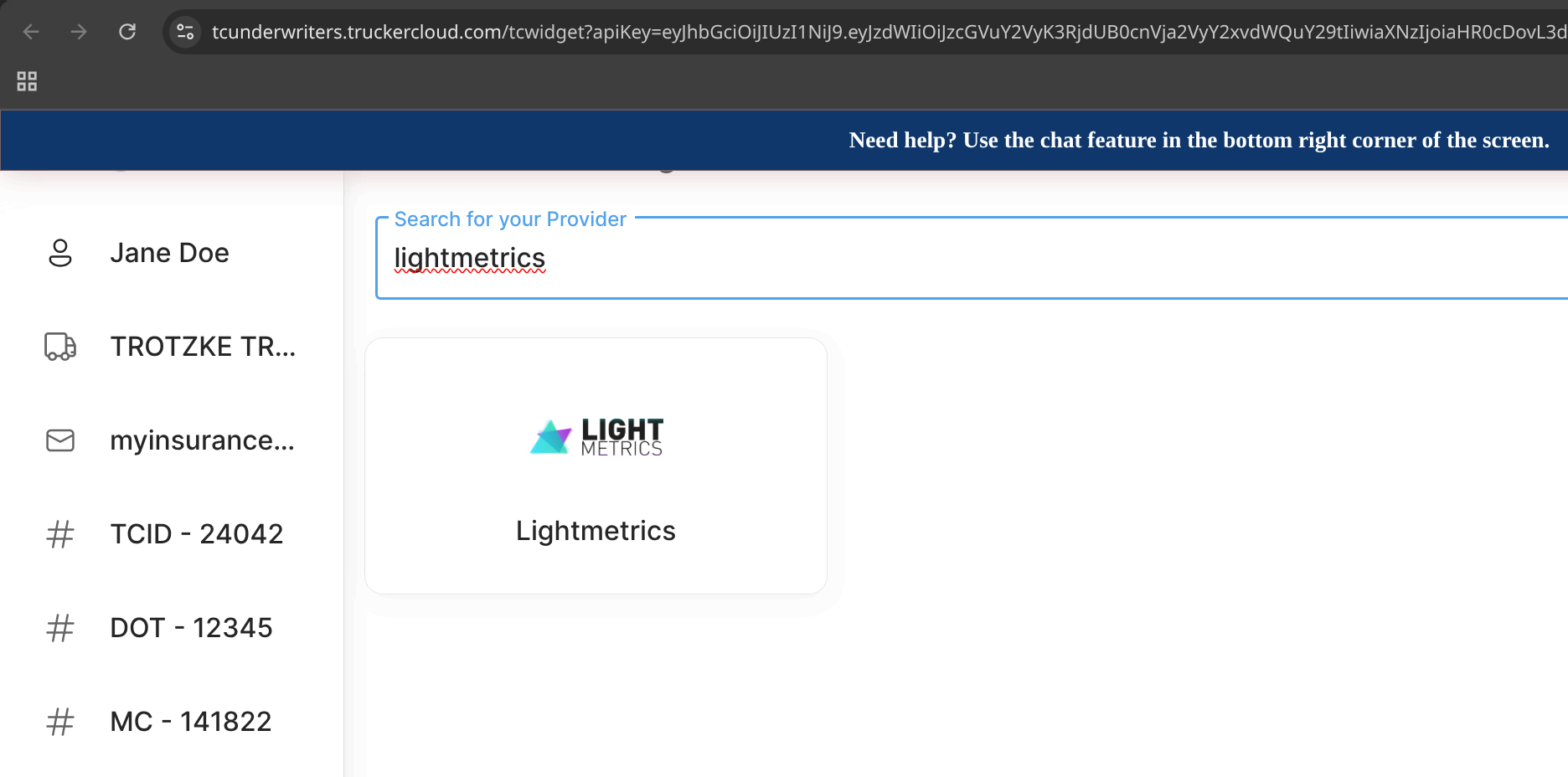
Once the information is filled and the form is submitted, the next page is for Service Provider selection. Here, "Lightmetrics" (or if applicable- the specific TSP logo) needs to be selected as the provider.
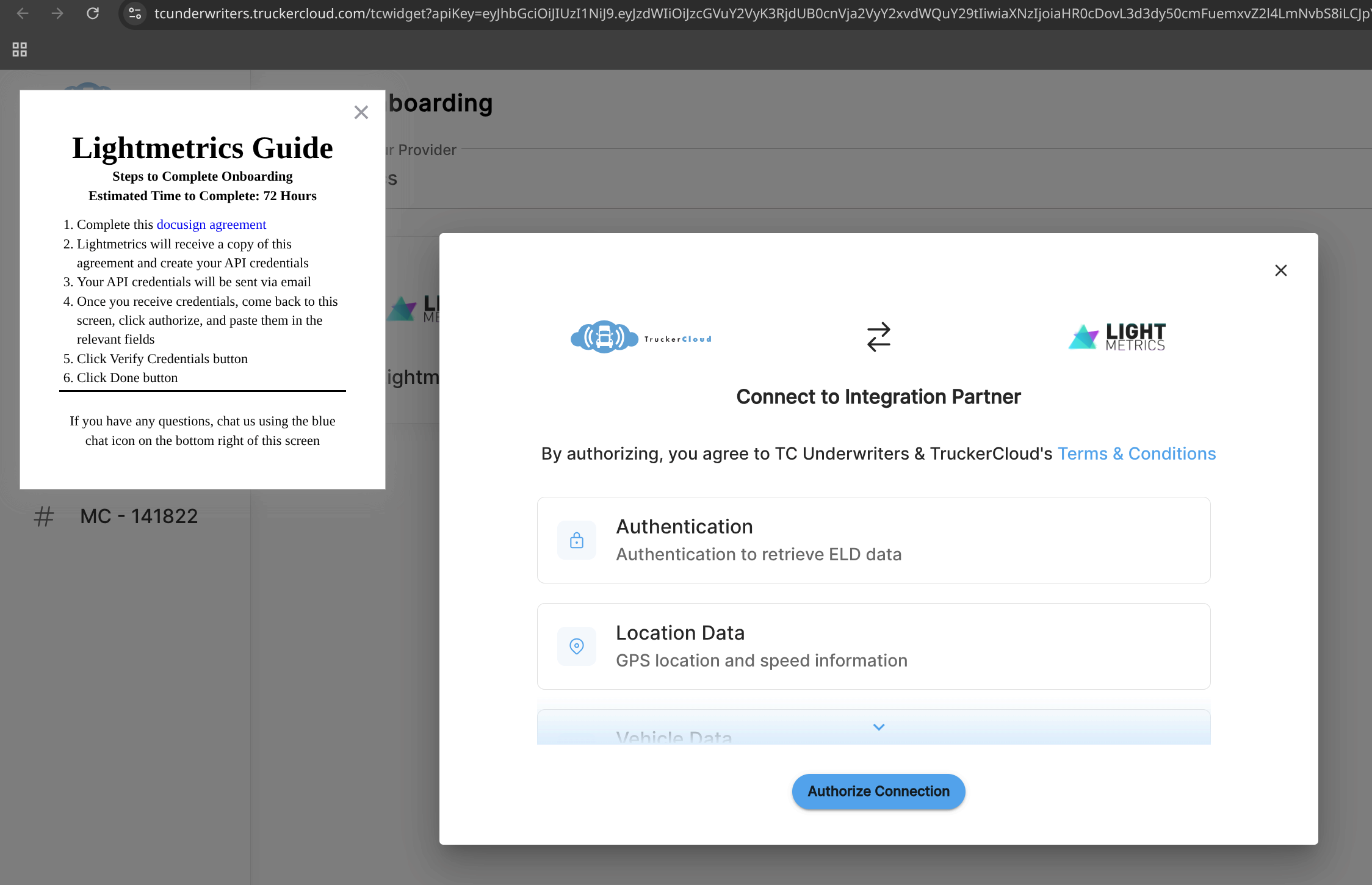
In the next page, the "Lightmetrics Guide" section will contain a "docusign agreement" link. Clicking the link will lead to a new form on Docusign.net.
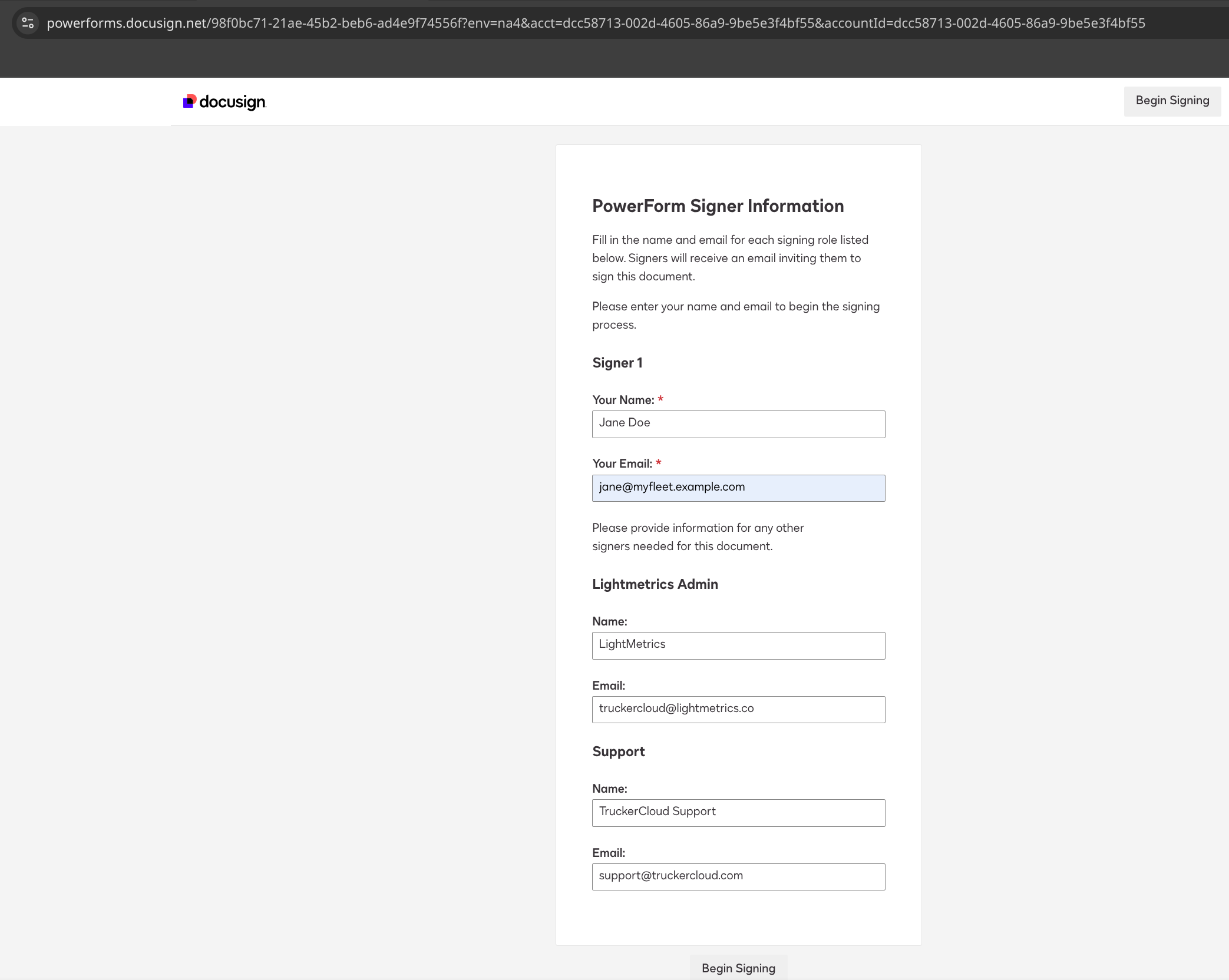
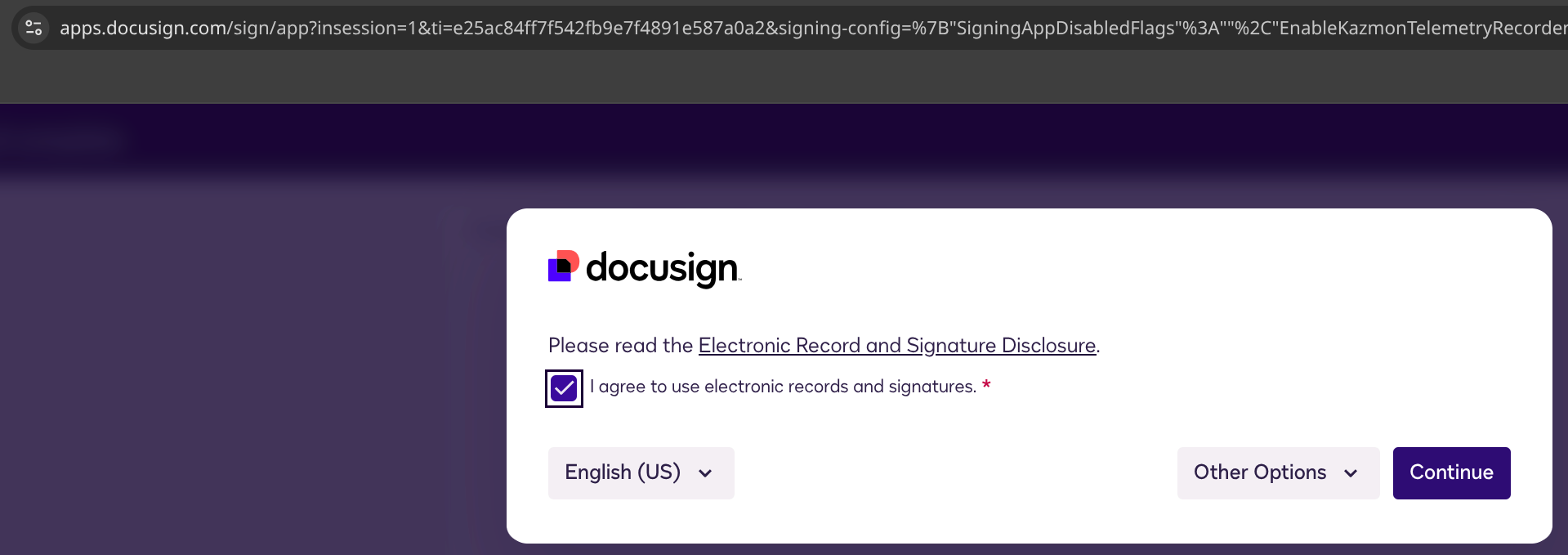
On Docusign, the name and email address of the authorized person must be supplied. Once the details are entered and submitted, the page will lead to a disclosure pop-up that should be acknowledged.
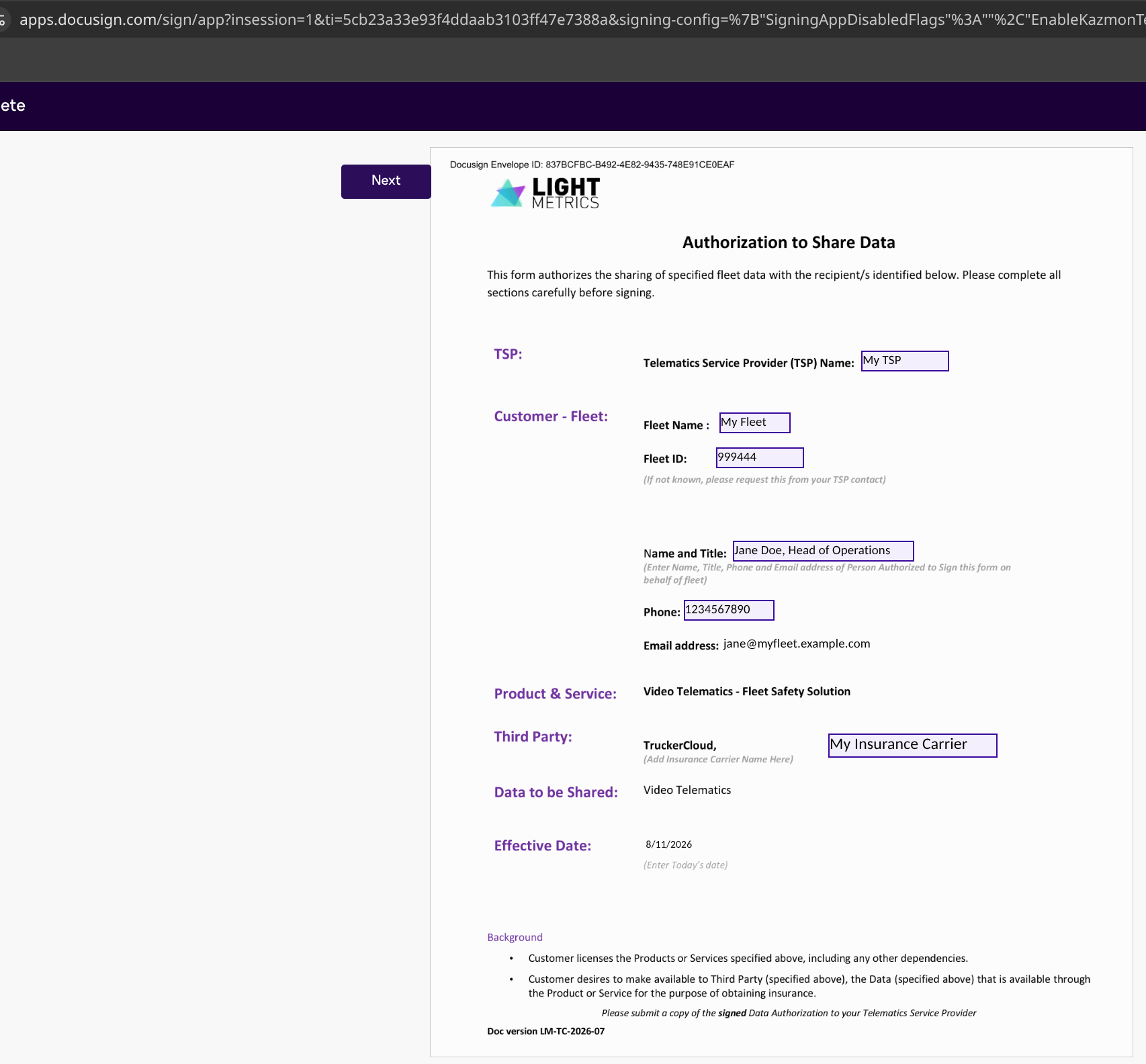
Next, the "Authorization to Share Data" form needs to be submitted. This must be signed by a person authorized to make the agreement on behalf of the fleet.
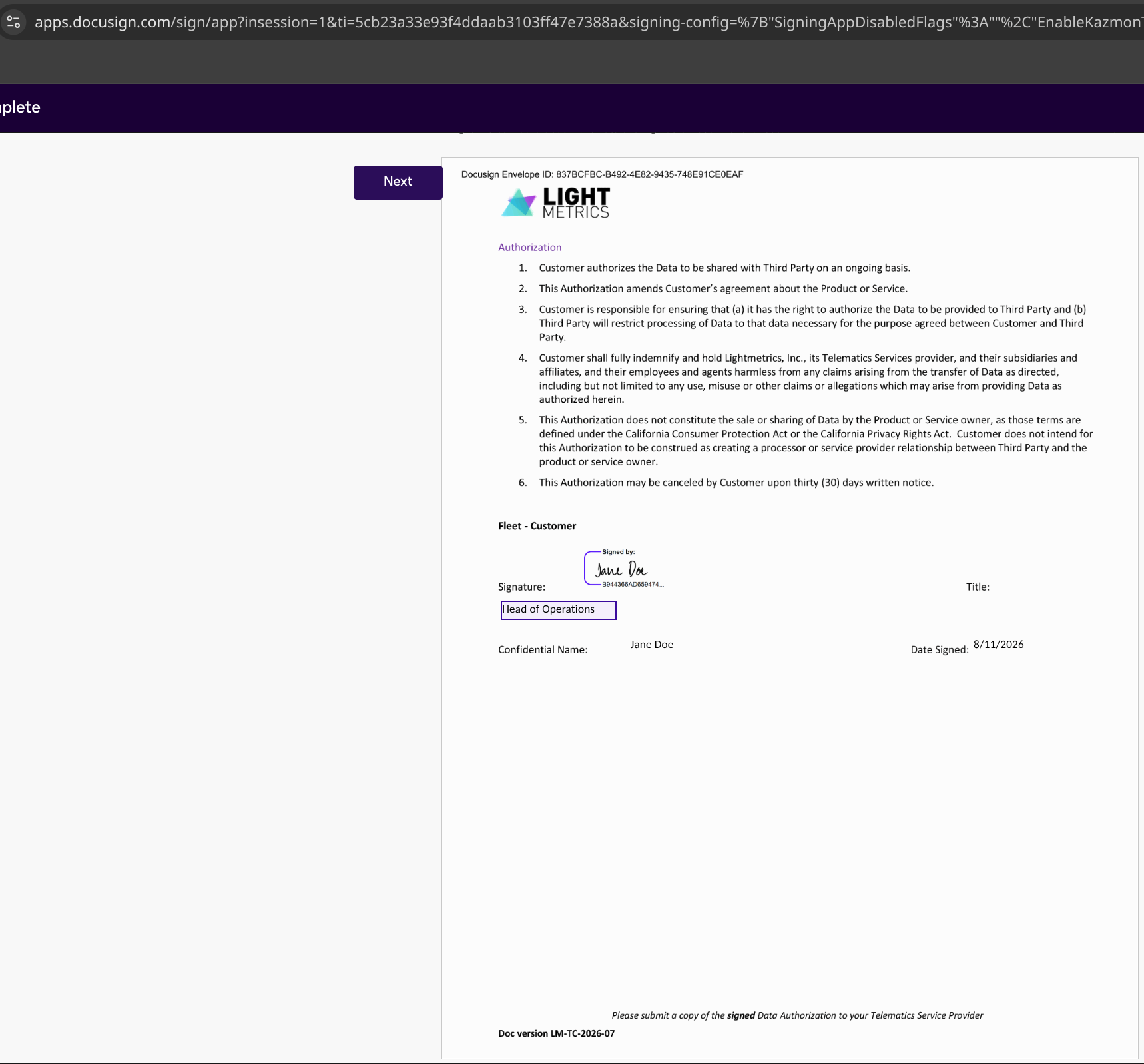
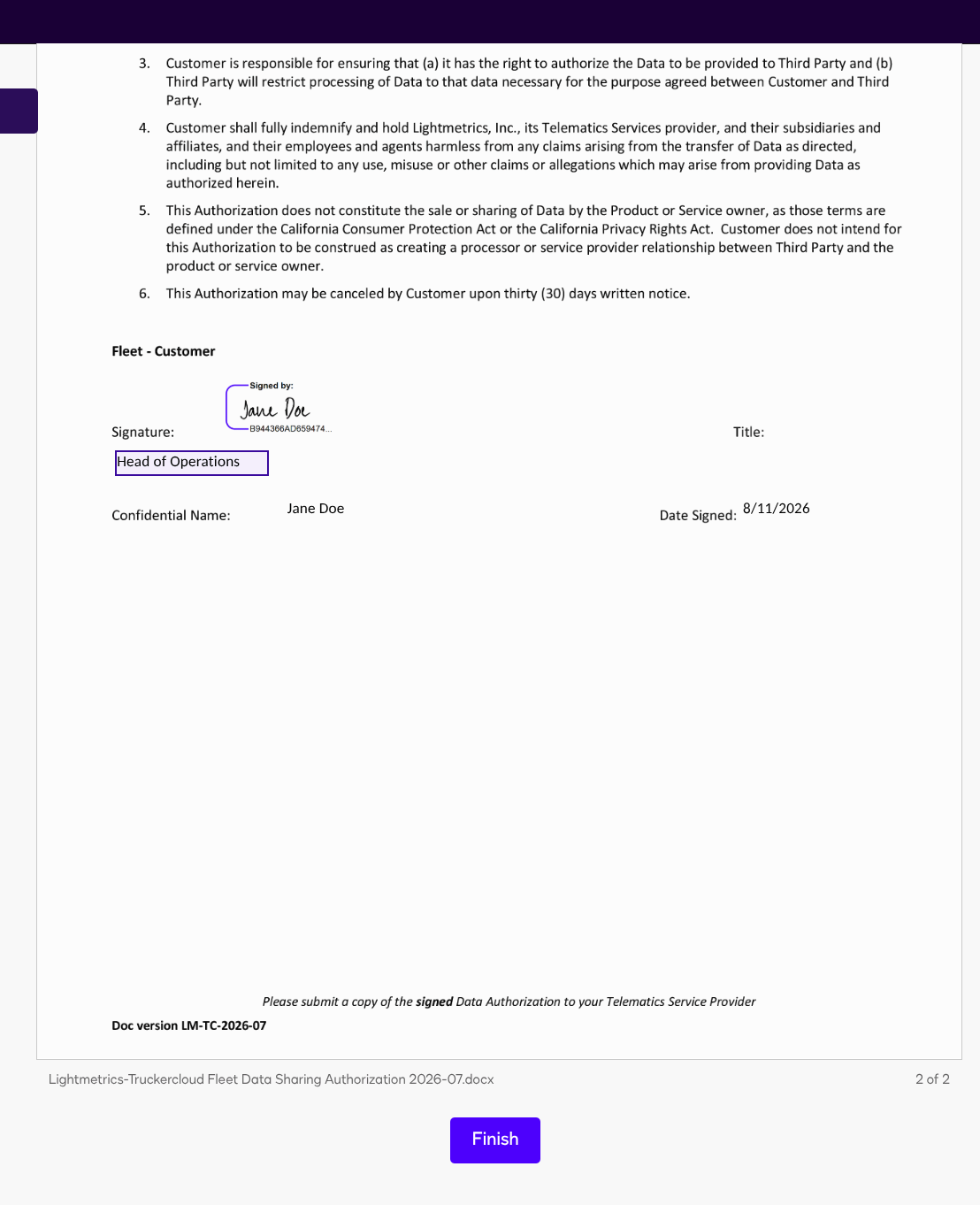
After clicking on "Finish", the signed form is automatically shared with Lightmetrics.
Once Lightmetrics receives the signed form, the details are first verified with the specific TSP's representatives. Then, access credentials for the fleet's data are generated and shared with Truckercloud. Truckercloud then establishes the data sharing connection and allows the insurance carrier to access the fleet's information.
Post-onboarding, there is no status page available to the fleet's user. Status updates have to be requested over email from Truckercloud. Following is an example status page of a connected fleet.